What people see when you share your screen: Zoom, Meet, Teams
Short answer: sharing a window shows only that window, sharing a screen shows everything on that monitor including the notification that just popped up. Three modes, four common leaks and two myths that refuse to die.
Short answer: it depends on what you picked in the share dialog.
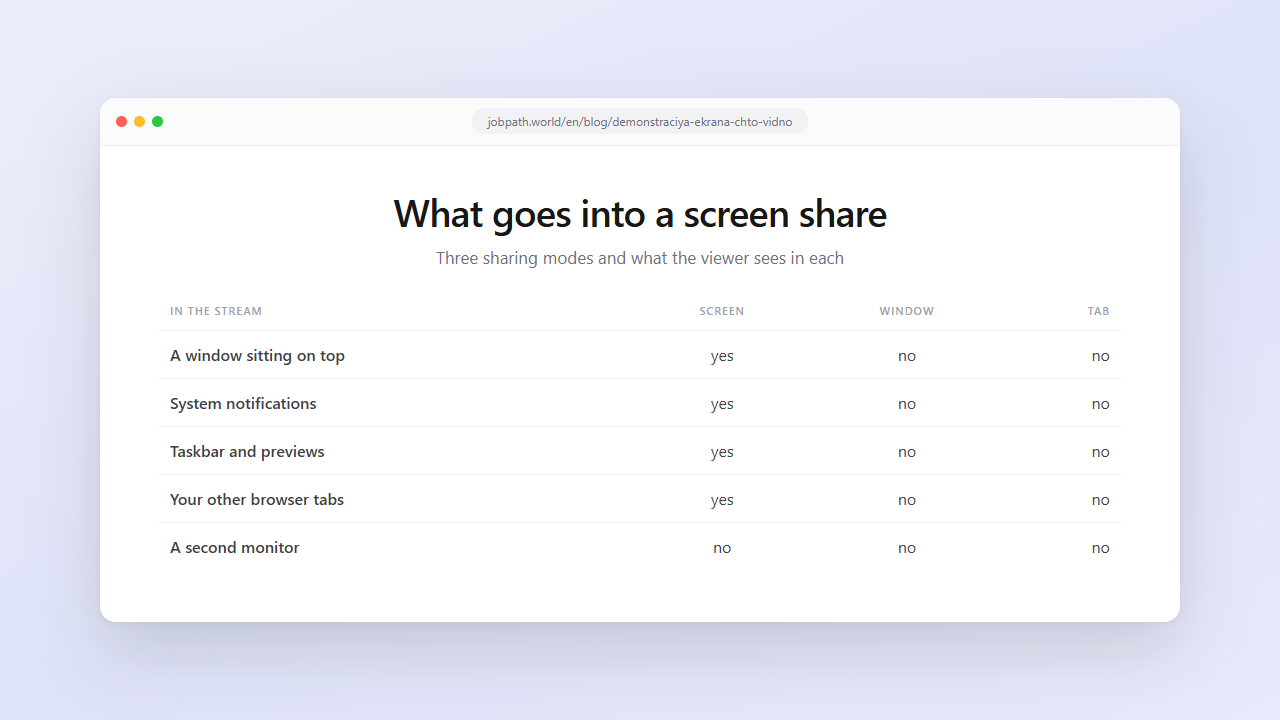
Sharing a single window shows only that window's content — if another window sits on top of it, the viewer still sees the one you chose. Sharing an entire screen shows everything on that monitor: other windows, the taskbar, pop-up notifications. Sharing a browser tab (Chrome) shows only the tab content, without the address bar or your other tabs.
This behaves identically in Zoom, Google Meet, Microsoft Teams and every other client, because the capture mechanism belongs to the operating system rather than the meeting service.
Three modes and what they include
| Included in the stream | Whole screen | One window | Tab |
|---|---|---|---|
| The content you picked | yes | yes | yes |
| Other open windows | yes | no | no |
| A window sitting on top of it | yes | no | no |
| Taskbar or Dock | yes | no | no |
| System notifications | yes | no | no |
| Your other browser tabs | yes, if the browser is visible | no | no |
| A second monitor | no | no | no |
| Minimised windows | no | no | no |
The third row is the important one. Window sharing captures the window itself, not the patch of screen underneath it — so a reference document laid over your presentation doesn't go out.
The second-monitor row matters too: one selected display is shared, the others aren't.
Four leaks people forget
Notifications. The most common one by far. On a whole-screen share, an incoming message is shown to everyone. One click fixes it: turn on Do Not Disturb before the call — Focus assist on Windows, a Focus mode on macOS.
The taskbar and window previews. A screen share reveals what you have open, and hovering an icon shows a thumbnail of that window — which goes out too.
Browser autocomplete. On a whole-screen share, typing in the address bar drops down your history for everyone to read. Sharing a single tab avoids it entirely.
Switching apps. Alt-Tab on a shared screen looks like exactly what it is. On a window share it's invisible: the viewer keeps seeing the chosen window even after you've moved elsewhere.
Two myths that won't die
"Zoom tells the host when I switch tabs." That feature was called attendee attention tracking, and Zoom removed it on 2 April 2020. In an ordinary meeting the service doesn't report which window is focused. The same is true of Meet and Teams.
Proctoring and online-assessment platforms are a different genre: focus tracking does exist there and is usually stated in their rules. Don't transfer conclusions from one to the other.
"The host can start screen sharing on my machine remotely." No. Sharing starts on your side, and the interface says so loudly — Zoom draws a green border around the shared area, Meet and Teams show an indicator.
What a host genuinely can do is record the meeting. The recording contains what participants saw: your video, the audio and whatever you shared yourself.
How windows get excluded from capture
Operating systems provide a supported way for an application to stay out of screen capture. On Windows it's the WDA_EXCLUDEFROMCAPTURE flag of SetWindowDisplayAffinity, available since Windows 10 version 2004; on macOS a window can be excluded from the captured scene.
That's the mechanism behind every interview copilot, ours included: the window draws on top of your screen but doesn't enter the shared stream, even when you're sharing the whole desktop.
It has honest limits, and they're worth knowing:
- it does nothing about your camera — eyes tracking to a second screen are read by a person, not a program;
- it doesn't help if someone films your screen with a phone;
- it doesn't apply if you pick the assistant's own window in the share dialog.
Products that promise "complete undetectability" are promising more than the operating system delivers. What actually exposes candidates is a separate topic, and it isn't software.
Pre-share checklist
- Turn on Do Not Disturb — one click removes most of the risk.
- Share a window rather than the screen when you're showing one application.
- For a website, share the tab: your address bar and other tabs stay yours.
- If you must share the screen, close spare tabs first.
- Check which monitor is being shared when you have two.
- Watch the indicator: Zoom's green border shows the exact boundary of what's visible.
FAQ
Can people see my other windows when I share my screen?
On a whole-screen share, yes — including windows on top and the taskbar. On a single-window share, no: the stream carries that window's content even if something else covers it. A tab share shows only the tab.
Can they see my notifications?
On a whole-screen share, yes. On a window or tab share, no. The reliable fix is Do Not Disturb before the call starts.
Can Zoom tell the host I switched tabs?
No. Attendee attention tracking was removed in 2020, and an ordinary meeting doesn't report which window is focused. Proctoring platforms are separate — they do have such checks and state them in their rules.
Is my second monitor visible?
Not unless you selected it. One display is shared and the others aren't, which is why reference material is convenient on a second screen.
Does an AI assistant window appear in a screen share?
Not when the app uses the supported exclusion mechanism — WDA_EXCLUDEFROMCAPTURE on Windows, scene exclusion on macOS. One caveat: if you pick that window yourself in the share dialog, it will be shown.
What's in a meeting recording?
What the participants saw: video, audio and whatever was shared. A recording doesn't add anything that wasn't in the live stream.